

Owners & Support
Firmware
Updates add features and fixes. Here's how to update each head.
-
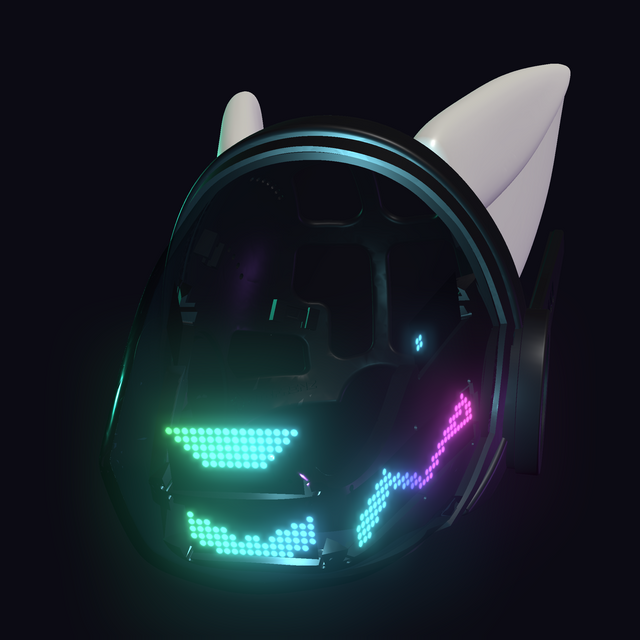
Studio, D-LUX and Legacy Rewired
Open the controller manual →Over WiFi (keeps your faces and settings):
- On your head's control page, open System. Set WiFi Mode to Home — AP + connect to home network, enter your home WiFi name and password (2.4 GHz networks only) and tap Save WiFi Settings. The head restarts on your home network.
- Back in System, under Firmware Update, tap Check for Update, then Update Now if a newer version is listed. If it says "✗ Not connected to home network — switch to Home mode first", step 1 didn't finish.
- Keep the head powered until it restarts, about 2 minutes. Your faces and settings are kept.
Heading to a con? In the System tab, set WiFi Mode to "Roaming — AP only (recommended at cons)" and tap "Save WiFi Settings". To update again later, switch back to Home and tap "Save WiFi Settings".
Over USB (a computer with Chrome or Edge): the USB install (controller manual → Install Latest ProtoFrenz Firmware → Install → Erase device → Next) resets your settings, including WiFi, faces and controls, so you'll set them up again afterwards. To keep your faces and settings, use the WiFi update above.
-
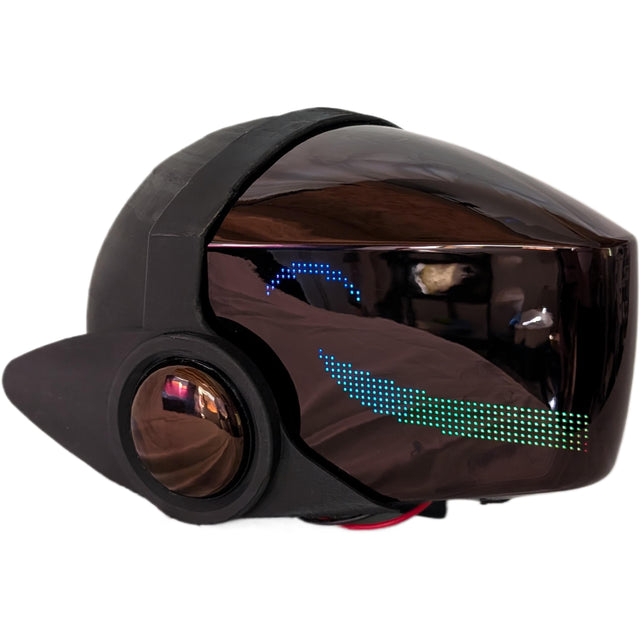
Starter
Open the Face Maker →These heads don't take firmware updates. New faces come from the Face Maker.
-
ProtoFrenz Nano
Nano firmware →Firmware and the face tool for the ProtoFrenz Nano DIY kit.
Something not working? Start from the problem or start a repair request.